In this article, we’re going to look at secure passwords. Nearly everything we use on a computer has a username and password. In a lot of cases, it’s the combination of these two things that keep your data safe.
There is a further security step that you can take by enabling MFA (Multi-Factor Authentication) – we will cover MFA in a separate blog post in the next few weeks.
Unique Passwords: Never use the same password on more than one system
Back to passwords. Before we go into how to create a secure password, it is essential that you do not reuse the same password on different systems.
When you set up a password on a computer system or website, best practice says that that password should be stored with one-way encryption so no system or person can see your password.
However, some systems store passwords in plain text, while others use very basic encryption which can easily be broken. If you use the same password across multiple systems and websites, if one is compromised, a hacker could use your username and password to try and access other systems. By making sure each password is completely unique, you stop this sort of attack in its tracks.
Use Complex Passwords
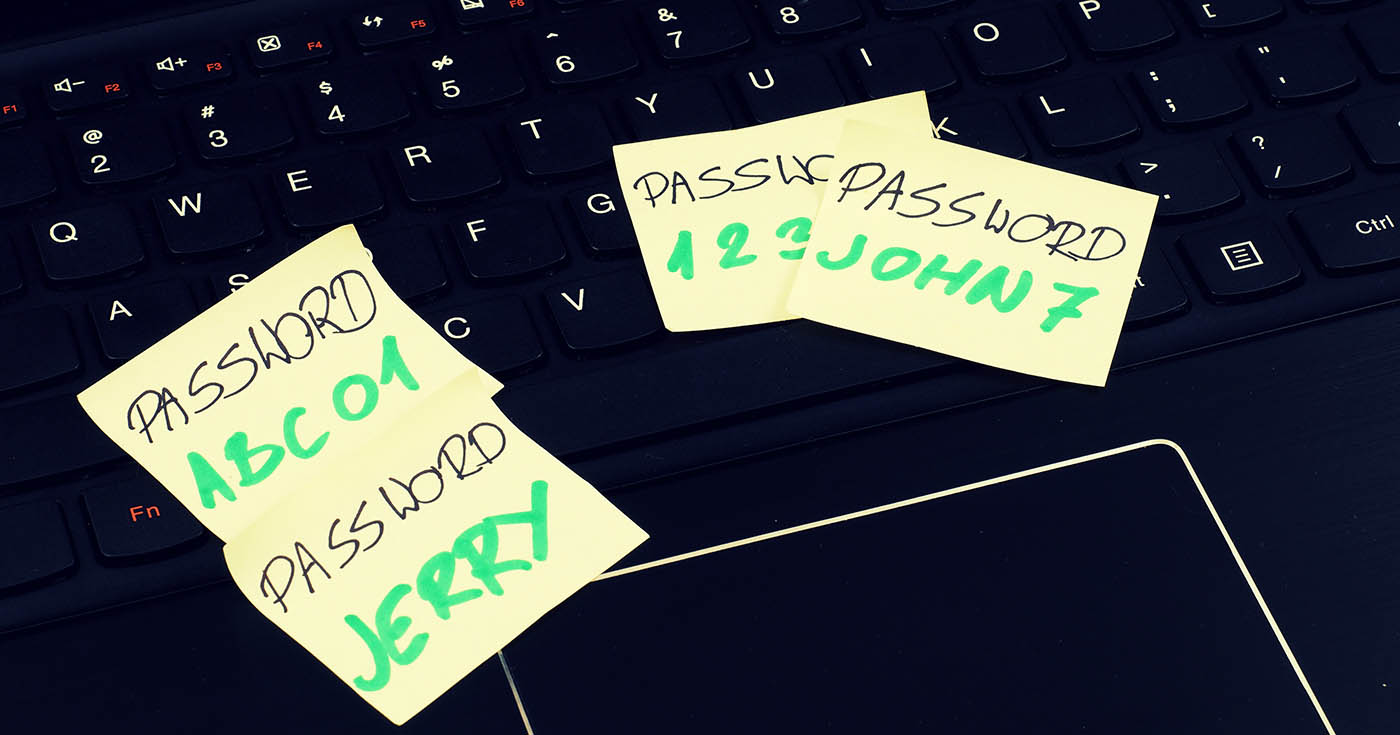
Passwords should contain a mixture of at least 3 character types (Upper Case, Lower Case, Numbers, Symbols). They should never be common passwords. Steer clear of abc123, 123123, dragon, passw0rd – all examples of terribly insecure passwords.
Tips for creating a good password that can be remembered
- The longer the better; having a longer password is often better than a short really complicated one, for example:
“red horse carpet banana” is better than “Ba1lo0n!” - Use a phrase to remember a complex string:
20hGdpmAtqw! can be remembered by “20 horses galloped down pall mall as the queen watched” - Use multiple words, symbols and capitals and mix it up:
BEAR49blueMore!
Never share your password!
Passwords secure your identity and should not be shared with other users. If you need to share your password, please discuss this with Get Support as there are usually other ways to achieve the same result in a more secure way.
The Solution: A password manager
The idea of keeping lots of long, complex passwords in your head is mindboggling. And there’s no point having nice secure passwords if they’re written down on post-it notes.
A password manager is a piece of software that can run on your computer and your phone. It will randomly generate highly complex passwords for each system you want to use. It will then store them securely, making them available when you need to log in to a system — often prefilling them in for you.
At Get Support we like LastPass for most applications. But that’s a whole other article.